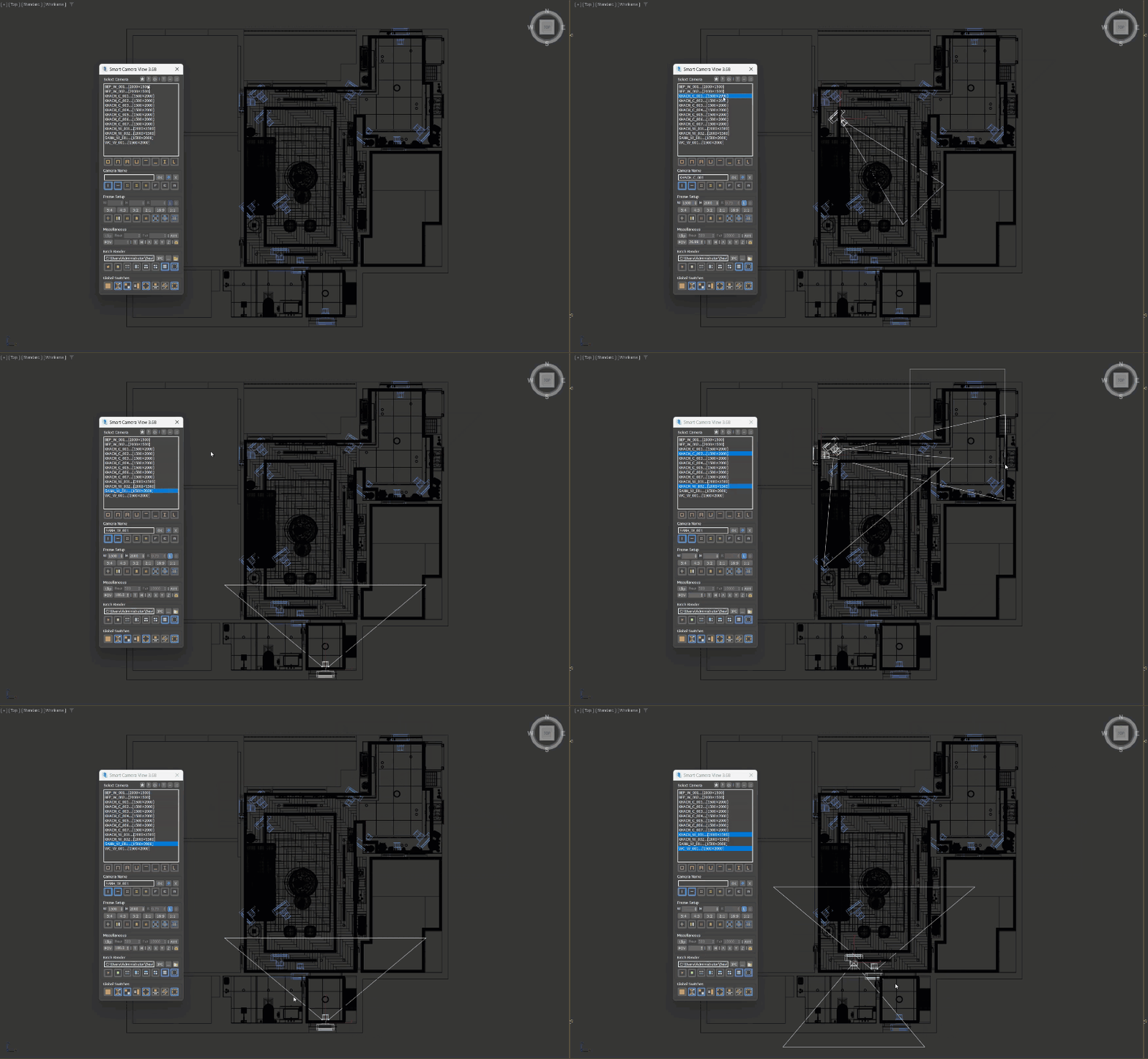
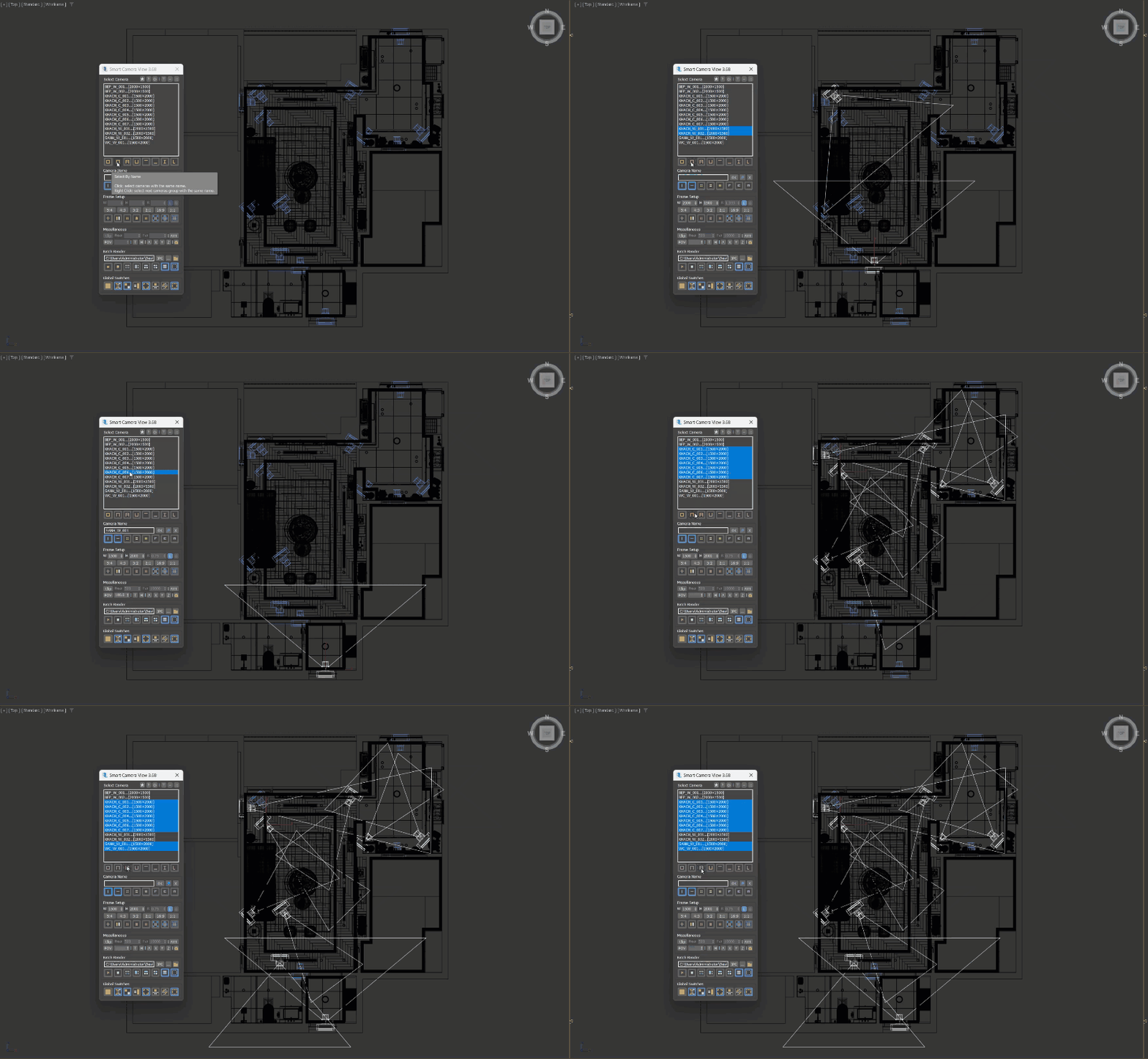
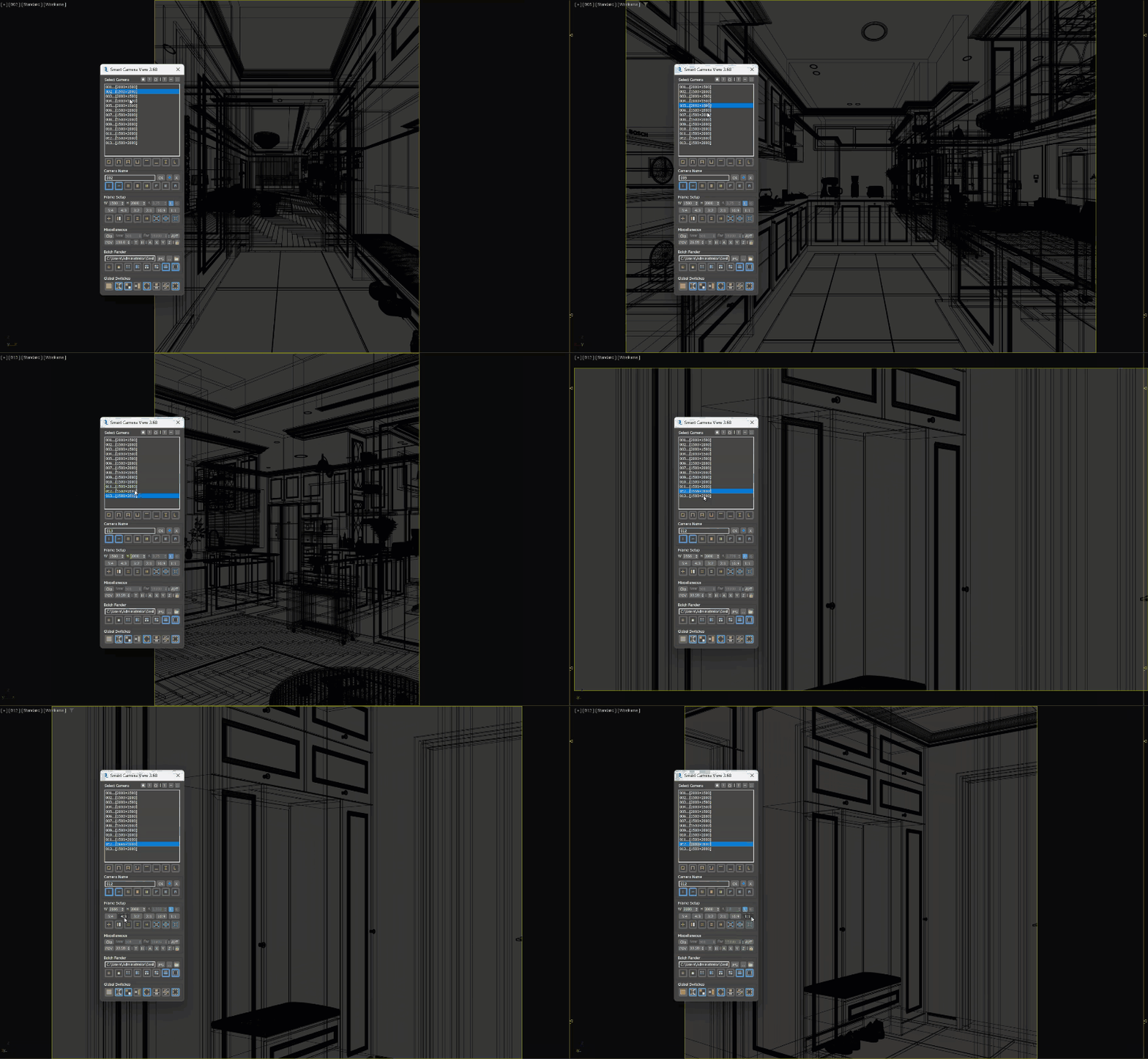
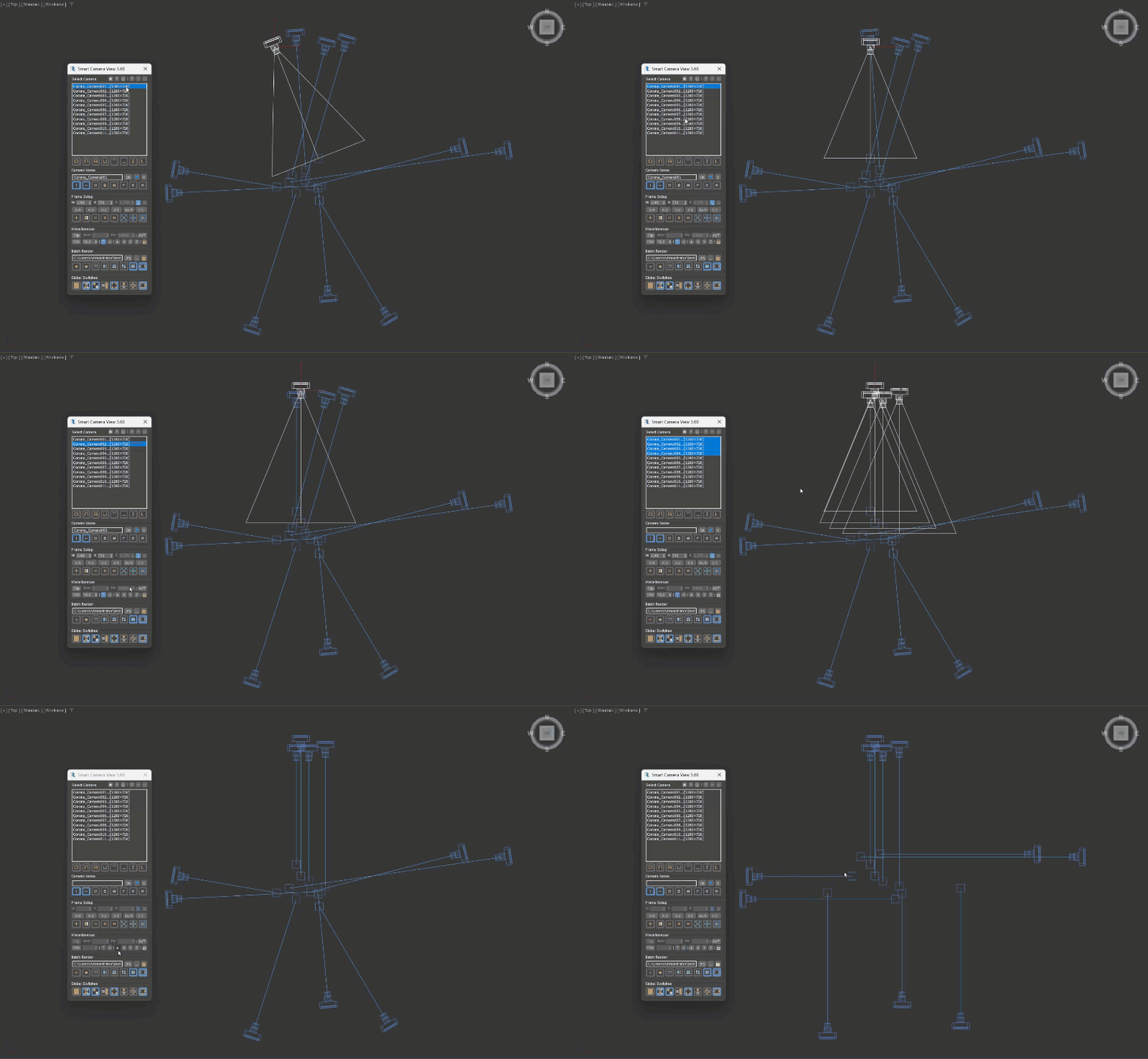
Feature demos below. Newer versions may look slightly different.

Syncs the selection between the camera list and the viewport.

Selects a camera group quickly by name or aspect ratio.

Renames many cameras at once by number, class or file name.

Switches the camera view and its render resolution together.

Sets the render resolution per camera with a grid overlay.

Renders the selected cameras with one click.

Grabs the viewports of the selected cameras with one click.

Aligns the camera along the X, Y, Z axes or automatically.

Smart Camera View 3

24.00 $

Latest version 3.99f – Updated 18/08/2024

We offer a 100% money-back guarantee if you are not satisfied with the product within 7 days of purchase, no questions asked. Policy ›

Main features

  • Syncs the selection between the camera list and the viewport.
  • Switches the camera view and its render resolution together.
  • Renames many cameras at once by number, class or file name.
  • Adjusts DOF, clipping, focal length and more for many cameras.
  • Sets the render resolution per camera with a grid overlay.
  • Aligns the camera along the X, Y, Z axes or automatically.
  • Renders or grabs the selected camera views with one click.

Replaces the default Camera View in 3ds Max with extra functions for switching between cameras. Version 3 keeps the idea of Smart Camera View 2 but is rewritten from scratch with a new algorithm and workflow, which makes it faster and adds new features. It is useful in scenes with several cameras that use different aspect ratios.

Requirements

3ds Max 2018 or higher, 2022 or higher recommended. Older versions still run the script, but some options are not available. An internet connection is needed to activate a license key.

How to install

If the download is a ZIP, extract it to get the MZP or MCR installer. Drag and drop the installer into the viewport and click Install if asked, there is no need to remove previous versions. The script button is in Customize User Interface > Toolbar > D95 DESIGN.

How to update

Updates are free. Use Check for Update in the script, or download the latest version from Downloads and install it over the old one. To roll back, uninstall first, then install the older version.

How to uninstall

Drag and drop the MZP installer into the viewport and click Uninstall. Settings can be kept or deleted. Uninstalling does not deactivate the license, so deactivate first to move to another computer.

If the uninstall fails, delete the script folder and its .mcr files in the two folders below, restart 3ds Max, then remove the toolbar buttons with right-click > Delete Button.

%LocalAppData%\Autodesk\3dsMax\20xx - 64bit\ENU\Scripts
%LocalAppData%\Autodesk\3dsMax\20xx - 64bit\ENU\usermacros

License key

After purchase you receive an email with a license key. Each key can be activated on 2 computers and includes support and all future updates of this version. It is a one-time payment and the key is permanent.

Activate license

The Activation dialog appears on the first start. Enter the license information from the purchase email and click Active.

Deactivate license

To move to another computer, deactivate on the current one first via About > Deactive License. If the old computer is no longer accessible, use License manager in the Account page to deactivate it remotely.

Troubleshoot

If the script keeps asking for the key or activation fails, check that the computer is online and 3ds Max is not blocked by the firewall. Older versions identify the computer by its MAC address, which antivirus software can randomize, so update to the latest version. If 3ds Max cannot write to disk, run it as administrator and activate again.

3.99f | 18/08/2024

IMPROVE
  • License system updated to v2: fixes deactivation caused by network configuration changes and increases the time the script can run without Internet. The message “License updated successfully!” appears when installing the new version.
  • Greatly increased the time the script can run offline without Internet.
FIX
  • Fixed a bug that prevented some versions of 3ds Max from running the script.
  • Fixed some potential activation bugs.

3.99e | 14/07/2024

IMPROVE
  • The script can run offline without Internet four times longer.
FIX
  • Tried to fix false alarms from some antivirus programs.
  • Fixed an error when reactivating the key.

3.99d | 17/05/2024

NEW
  • License Manager is integrated into Smart Camera View. When the activation limit is reached, the License Manager panel appears so you can deactivate one of the old machines. After the old computer is deactivated, the script activates the license on the current computer automatically.
IMPROVE
  • Faster start after the first activation.
FIX
  • Fixed the title of some message boxes.
  • Fixed some tooltips.

3.99c | 29/04/2024

FIX
  • Fixed some minor errors when activating the script.

3.99b | 29/04/2024

IMPROVE
  • The script can now work offline without a constant Internet connection.
  • Updated the license system, which greatly reduces start time.

3.99a | 19/04/2024

FIX
  • Fixed a bug that showed the activation panel every time the script started.

3.99 | 15/04/2024

NEW
  • Added the “Do not display hidden cameras” option in System Settings. When enabled, hidden cameras are not shown in the camera list.
  • Added the “Force redraw when switch” option in System Settings. When enabled, the script forces the 3ds Max viewport to redraw when switching camera. Use it when the viewport behaves strangely when switching camera.
  • Added the “Countdown before start” option in System Settings. When enabled, the script counts down before rendering starts and you can abort to cancel the render job. Set the seconds in the spinner next to it.
IMPROVE
  • Improved the Lock Viewport workflow. Previously, to update the Lock ID you clicked the viewport to lock and then right-clicked the Lock Viewport button. Now right-click the Lock Viewport button first, then click the viewport to lock.
  • The Auto Hide Icons button in the Batch Render group is renamed Clear Viewport. It also hides viewport statistics automatically when using Batch Grab Viewport.
  • Improved the interface with Scaling Factor = 1.0.
  • Improved the installer.
FIX
  • Fixed a bug that prevented the “Custom Color” feature from working.
  • Fixed a bug where the “Auto Start” feature showed an error message when starting 3ds Max.
  • Fixed some tooltips.

3.98 | 16/03/2024

IMPROVE
  • Added a force viewport redraw command when switching camera.
FIX
  • Fixed a bug that prevented the script from starting the first time.

3.96 | 31/12/2023

NEW
  • Added the “Viewport Info” option in Script System Settings to display the camera resolution in the viewport.
IMPROVE
  • The Camera Name section now shows the camera name when only one camera is selected.
FIX
  • Fixed Script System Settings not closing automatically after clicking “OK” on the first start of the script.
  • Fixed a bug where the script closed accidentally when using Quick Close in other scripts.

3.93 | 25/11/2023

IMPROVE
  • Changed how the Automatic Vertical Tilt button works. It now works like the “Target” button and is renamed Toggle Automatic Vertical Tilt. It still supports only Corona, V-Ray and Physical Camera.
  • Slightly faster first start.
FIX
  • Fixed some misspelled and missing tooltips.

3.91 | 25/10/2023

IMPROVE
  • Improved the script installer and fixed the “unhandled exception exception_access_violation” error when installing.
  • The Fix Camera’s Target feature in Preset & Extra can now be undone.

3.90 | 23/10/2023

NEW
  • Added the “CRM to SCV convert” button in Preset & Extra: converts the resolution of the Camera Resolution Mod modifier to the Smart Camera View resolution. Camera Resolution Mod must be installed in 3ds Max for the conversion to work.
  • Added the “Clear Camera’s Keys” button in Preset & Extra: deletes all animation keys of the selected cameras.
IMPROVE
  • Redesigned some icons of the “Minimalist” icon set.
  • Optimized a few small algorithms.
FIX
  • Fixed some misspelled and missing tooltips.

3.85 | 17/10/2023

IMPROVE
  • Reduced the script’s first start time in 3ds Max.
FIX
  • Fixed an “undefined” error when selecting an unnamed resolution profile.
  • Fixed a bug that prevented adding or deleting resolution profiles.

3.82 | 15/09/2023

NEW
  • Shift + Click or Shift + Right Click on the Scale Resolution button doubles or halves the camera resolution.
IMPROVE
  • The script now clears the Render Output Path in Render Setup, opened with F10, before starting Batch Render to prevent some bugs.
  • Slightly redesigned the Script System Settings interface.
FIX
  • Fixed some typos in Script System Settings.

3.77 | 17/06/2023

FIX
  • Fixed a bug that prevented the Overscan feature from working as intended.

3.76 | 09/06/2023

NEW
  • Added the “Quick Rename” option. Renaming is triggered when you enter text in the edit box and press ENTER, TAB or ESC, or click outside the field. Renaming cannot be undone in the current version, so use it with care.
  • Added a custom scale value for Scale Resolution.
  • Added a DOF toggle button and an Fstop spinner.
  • Added Shift + Right Click and Shift + Double Click actions in the camera list.
IMPROVE
  • Redesigned the main interface to be more compact.
  • Improved the Field Of View and Focal Length toggle.
  • Clipping far and near parameters can now be adjusted without enabling Clipping.
  • Greatly increased camera parameter loading speed and fixed a bug that made the main interface flicker when selecting a camera.
CHANGE
  • Removed Installer from Script System Setting.

3.68 | 16/03/2023

NEW
  • Added the “Preset and Extra” button: click to open the Resolution Preset & Extra Tools dialog.
  • Added “Render Preset”: double-click a preset to apply its settings to the selected camera. Enter a preset resolution and name and click “+” to add a custom preset, click “-” to delete the selected preset, click “U” to update the selected preset. Updating overwrites the selected preset and cannot be undone. Use the â–² and â–¼ buttons to reorder the preset list.
  • Added “Extra Tools”: Camera Converter shortcut, quick clear camera’s modifier and fix camera’s target. Details are in the changelog video. Camera Converter is not integrated in Smart Camera View and must be installed separately. “Clear Camera’s Modifier” and “Fix Camera’s Target” only affect the selected camera.
FIX
  • Fixed some tooltips and messages.

3.53 | 10/01/2023

NEW
  • Added the “Switch on Start” checkbox in Script System Setting. In previous versions it was always on and could not be turned off. Also added the “In Lock Viewport” option for “Switch on Start” in Script System Setting.
  • When using FOV mode, the script now turns on Specify FOV in V-Ray Physical Camera and Physical Camera automatically.
  • Added Shift + Click on the Auto Align Camera button, the A button, to align all cameras.
  • Added Ctrl + Click on the Batch Render button to render the last batch.
  • Added the “Automatic Vertical Tilt” button in the “Miscellaneous” group. It supports Corona Camera, 3ds Max Physical Camera and V-Ray Physical Camera. Hold Shift to apply to all cameras.
FIX
  • Fixed a bug when editing the clipping value of several cameras.
  • Fixed the V-Ray Camera FOV value not showing correctly when selected.
  • Fixed the clipping button state not showing correctly when selecting a Physical or V-Ray Physical Camera.

3.42 | 23/11/2022

NEW
  • Added a new camera align function, the A button: click to align the camera to the set angle automatically. Right click to set the snap angle.
  • Added new camera align options that use the target or the camera as origin. Hold Ctrl or Shift while clicking the align buttons X, Y, Z to use them.
IMPROVE
  • The camera align action can now be undone.
  • Camera Align now supports free cameras. It uses a different algorithm, the script only rotates the camera and does not move it, so the result may differ from a target camera in the same location.
  • The camera target is rotated in the right direction after aligning.
CHANGE
  • Moved the “Dockable” and “Icon” settings outside. Right-click to set them.
  • Changed the “Lite” & “Full” buttons to “-” & “+” buttons.
FIX
  • Fixed a critical bug that crashed 3ds Max when setting the Clipping value with Fstorm and Corona Camera together.
  • Fixed a bug where closing and reopening the script in “Lite” mode messed up the user interface.
  • Fixed a bug where Camera Selection Lock did not work with Selection Sync.

3.39 | 21/11/2022

NEW
  • Added new dock options, left, right and floatable, in Script System Setting.
  • Added the “Auto Start” option in Script System Setting: enable it to start the script automatically when opening 3ds Max.
  • Added the “Miscellaneous” group. FOV parameters, Camera Clipping and Lock Transform are moved to this group.
  • Added “Toggle Horizon Line”, the “H” button: click to toggle the camera horizon.
  • Added Quick Camera View Align buttons on the X, Y, Z axes.
  • Added the “Auto Shutdown” button in the “Batch Render” group: enable it to shut down automatically after rendering. Right click to set the delay before shutdown. It shuts down the computer in “force” mode, so save all work before rendering with this option.
  • Added a minimalist theme for button icons. Select it in Script System Setting.
IMPROVE
  • The script now works with Fstorm Camera.
  • Brought the old “Clear” button back to the “Camera Name” group.
  • The “Custom Output Format” button is replaced by the “Select Output Format” button next to the output path. The script now always renders with the custom format shown on the button. Click it to edit the format, which is the same as right-clicking the old Custom Output Format button. Right-click it to use the default output format. Ctrl + Click it to set the default output format.
  • When several cameras are selected, the script now shows the clipping far and near values if they are the same, like the W and H values. In the old version they were left blank.
  • Right Click the “Use Default Batch Render” checkbutton to open the 3ds Max batch render dialog.
  • The FOV parameter of V-Ray Physical Camera can now be adjusted without ticking the “Field of View” checkbox in the “Sensor & Lens” group. Also fixed some V-Ray Physical Camera FOV bugs.
CHANGE
  • Rearranged the buttons in the Batch Render group.
  • “Auto Open Output Folder” and “Auto Hidden Icons” are enabled by default on new installations.
FIX
  • Fixed a bug that greyed out the clipping parameters even though all cameras had clipping enabled.
  • Fixed ghosting in the perspective viewport caused by Grid Overlay and improved the performance of this feature.
  • Fixed bugs where functions still ran when no camera was selected.
  • Fixed a few tooltips and tweaked the icons.

3.24 | 15/08/2022

NEW
  • Added the “Dockable Dialog” option: enable it to dock the script in the 3ds Max viewport.
  • Added “Round Resolution” value information in the button tooltip.
  • Added “Pixel Count Limit” value information in the button tooltip.
  • Added the “Monochrome” option: use a monochromatic icon set for the script.
  • Added the “Lens value” option for Camera Frame in Script System Setting.
IMPROVE
  • Shows the current custom image format in the output folder path if “Custom Output Format” is enabled.
  • Clears the MAXScript listener when the script starts.
CHANGE
  • The “Save” & “Load” buttons in Script System Setting are renamed “Backup” & “Restore”.

3.16 | 12/06/2022

NEW
  • Added Camera’s FOV and Camera’s Clipping properties to the Camera Frame group.
CHANGE
  • Moved the “Toggle Camera Target” & “Lock Camera Tranform” buttons to the Camera Frame group.
  • Changed the “Lock Camera Tranform” text button to an icon button.
  • Brought back the “Quick Close” option in Script System Setting, enabled by default. Disable it to restart the script when it is already open instead of closing it. This is useful, for example, when you use multiple monitors and want the shortcut button to bring the script to the center of the screen.
FIX
  • Fixed the “Unknown property” error message with unsupported cameras.
  • Fixed a bug that re-enabled the Ratio spinner, the R spinner, while Camera Over Scan was still active.
  • Fixed a minor bug in the batch render function.

3.09 | 27/05/2022

IMPROVE
  • Switched the button shortcut actions between “Set default output path” and “Choose default output path” to avoid the pop-up window when right-clicking. Right Click uses the default output path and Ctrl + Click sets the default output path. Also added a tooltip.
FIX
  • Fixed a bug that prevented Auto Hide Icon from working with multiple viewports.
  • Fixed a bug where Lock Aspect Ratio did not work when changing the resolution height.
  • Fixed some missing tooltips.

3.07 | 17/04/2022

NEW
  • Added the “Custom Grid” option for “Grid Overlay”. Alt + Right Click to set the custom grid value.
  • Added the “Load Icons” option in Script System Setting: enable it to load button icon images on start, enabled by default. Disable it if the script starts too slowly, the icons cannot be loaded, or you prefer text buttons like the old version.
  • Added a button to toggle the camera’s target on and off, the “T” button.
  • Added tooltips for the “Lock Camera Tranform” and “Toggle Target Camera” buttons.
IMPROVE
  • Brought back the Script Installer button in System Setting from version 2.
  • Right Click the “Grid Overlay” button to change the grid color.
  • Right Click the “Show Frame Range” button to edit the separator character in the frame range.
  • Right Click “Show Render Preset” to open Render Setup.
  • Shift + Click the “Select All” button to select all cameras and their targets.
CHANGE
  • Removed the “Padding Digits” option from Script Settings. To set it in the new version, right click the “Name Fixer” button in “Global Switches”. The old default settings are removed, so set them up again.
  • Small adjustments to the script’s toolbar icon and button icons.
  • Rearranged the groups in Script System Settings.
FIX
  • Fixed the script installer runtime error “can’t load button images”.
  • Fixed a bug that turned “Grid Overlay” on automatically after setting the grid mode.
  • Fixed a bug where changing the height of several cameras with “Lock Aspect Ratio” on still made the cameras lose their aspect ratio.

3.02 | 10/04/2022

IMPROVE
  • Brought back the Camera Lock Transform function from version 2.
  • Right Click Select All also deselects cameras in the viewport.
  • The Width, Height and Aspect Ratio spinners start in the indeterminate state.
  • Each camera keeps its ratio when batch changing the width or height of several cameras with Lock Aspect Ratio enabled.
  • Select by Name and Select by Ratio now allow selecting several cameras.
  • Batch Grab Viewport now also works with scene states.
FIX
  • Fixed a bug where the Select All button did not work with Selection Sync.
  • Fixed a bug that prevented Select Current Active from working with Lock Viewport.
  • Fixed a bug that prevented the Shift + Click action on the Aspect Ratio button.
  • Fixed and corrected some tooltips.

3.00 | 03/04/2022

NEW
  • Initial release.
  • Completely new user interface with icon buttons.
  • Script Settings and System Settings are simplified as switches.
  • Cameras can now be linked to a Scene State and a Render Preset in Batch Render.
  • New algorithm and workflow: faster, fixes all limitations of the old algorithm and allows more features to be added. In some cases performance is increased by thousands of times.
  • New Lite Mode mechanism for faster switching.
  • Many other features added.

User interface

Groups: Select Camera ①, Camera Name ②, Frame Setup ③, Miscellaneous ④, Batch Render ⑤, Global Switches ⑥. System buttons ⑦: Preset & Extra, About Script, Script System Settings, Icon Settings, Lite Mode ⑧, Dock Script ⑨. Lite Mode collapses the dialog to the camera list. Lite Mode does not work when docked.

Script in 3 states: Full Mode, Lite Mode and Dockable Mode.

Each camera can have its own resolution, frame range, scene state and render preset. All functions work with several cameras selected.

Icon Settings

Click T to switch between icons and text. Right-click to choose an icon set: Normal â‘ , Minimalist â‘¡, Monochrome â‘¢.

3 default icon sets.

Select Camera

The camera list and its selection buttons.

Select Camera group.

Camera List â‘  shows every camera with its resolution suffix.

  • Click: select. Shift, Ctrl or drag to select several. With Selection Sync on, the cameras are also selected in the viewport.
  • Right-click: enter the camera view with its resolution, scene state and render preset. Called Normal Switch.
  • Double-click: same, then close the dialog. Called Hot Switch.
  • Shift + Right-click: the target. Shift + Double-click: camera and target.
  • Actions can be changed in System Settings.
  • Select All â‘¡: all cameras. Shift + Click: cameras and targets. Right-click: deselect all and refresh the list.
  • Select By Name â‘¢: cameras with the same name as the first selected one, ignoring the number suffix. Right-click: next group.
  • Select By Ratio â‘£: cameras with the same ratio, any resolution.
  • Select Current Active ⑤: the camera of the active viewport. Right-click: the camera of the Lock Viewport instead.
  • Select Up â‘¥: previous camera, Normal Switch. Right-click: first camera.
  • Select Down ⑦: next camera, Normal Switch. Right-click: last camera.
  • Invert Selection â‘§.
  • Lock Selection ⑨.

Camera Name

Renames cameras and chooses what the name shows.

Camera Name group.
  • Text box â‘ : name of the selected camera without suffixes. Edit it and press OK â‘¡ to rename the selection, an empty name gives numbers only.
  • Search â‘¢: select cameras whose names contain the text. Letters only.
  • X â‘£: clear the text box.
  • Show Separator ⑤: three dots by default. Right-click to change it.
  • Show Resolution â‘¥: show the resolution. Right-click to change the character between width and height.
  • Show Scene State ⑦: right-click to open Scene State Manager.
  • Show Render Preset â‘§: right-click to open Render Setup.
  • Show Frame Range ⑨: right-click to change the separator.
  • Name By File â‘©: name after the scene file. Shift + Click: all cameras.
  • Name By Class ⑪: name after the class. Shift + Click: all cameras.
  • Name By Number â‘«: rename with numbers. Shift + Click: all cameras.

With Name Fixer on, names get no spaces and no duplicates.

Frame Setup

Resolution, ratio, grid and render parameters per camera.

Frame Setup group.

Width â‘ , Height â‘¡ and Ratio â‘¢ of the selected cameras, like Output Size in Render Setup but per camera. Lock Aspect Ratio â‘£ locks the ratio.

Overscan

Press Overscan ⑤, then change Width and Height. The frame grows without changing the composition. Not with Lock Aspect Ratio.

Demo Overscan feature.

Ratio Preset

Buttons â‘¥, example 16:9:

  • Click: 16:9 for the selection.
  • Shift + Click: 16:9 for all cameras.
  • Right-click: 9:16 for the selection.
  • Shift + Right-click: 9:16 for all cameras.

Right-click 1:1 for the golden ratio 1:1.618. Invert Ratio â‘§ swaps width and height. Preset values cannot be changed.
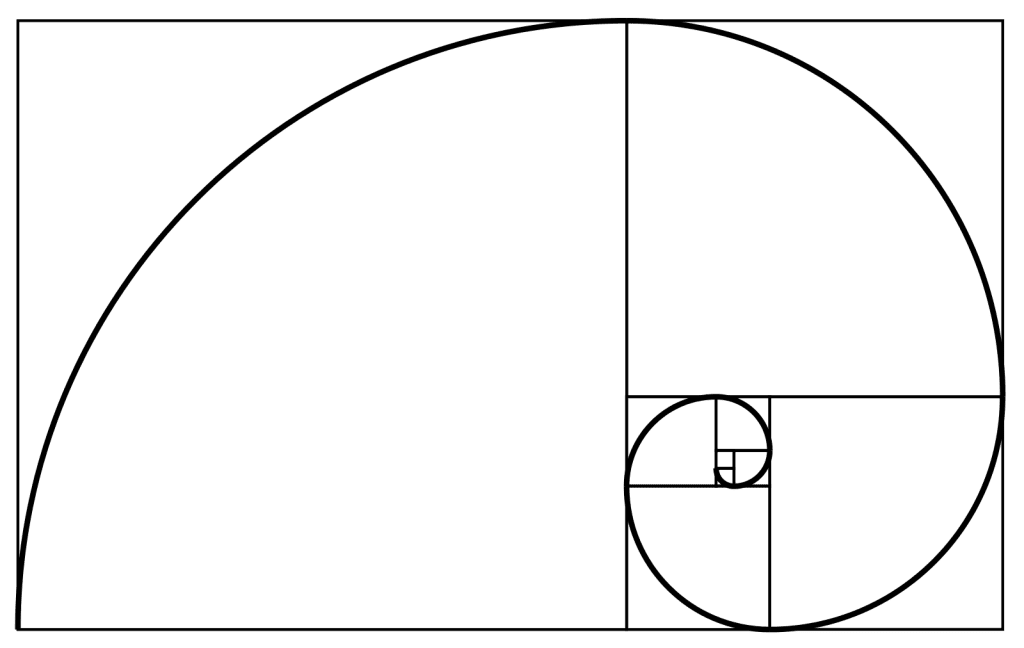
The golden aspect ratio, which is very rarely used.

Grid Overlay

Grid Overlay ⑦ shows a composition grid in the camera view, Rule of Thirds by default. Right-click to choose: Rule of Thirds, Center Cross, Golden Ratio, Diagonals, Golden Triangle L, Golden Triangle R, Custom Grid. Shift + Right-click to cycle. Alt + Right-click to set rows and columns of Custom Grid, 5 x 5 by default. Ctrl + Right-click to set the color.
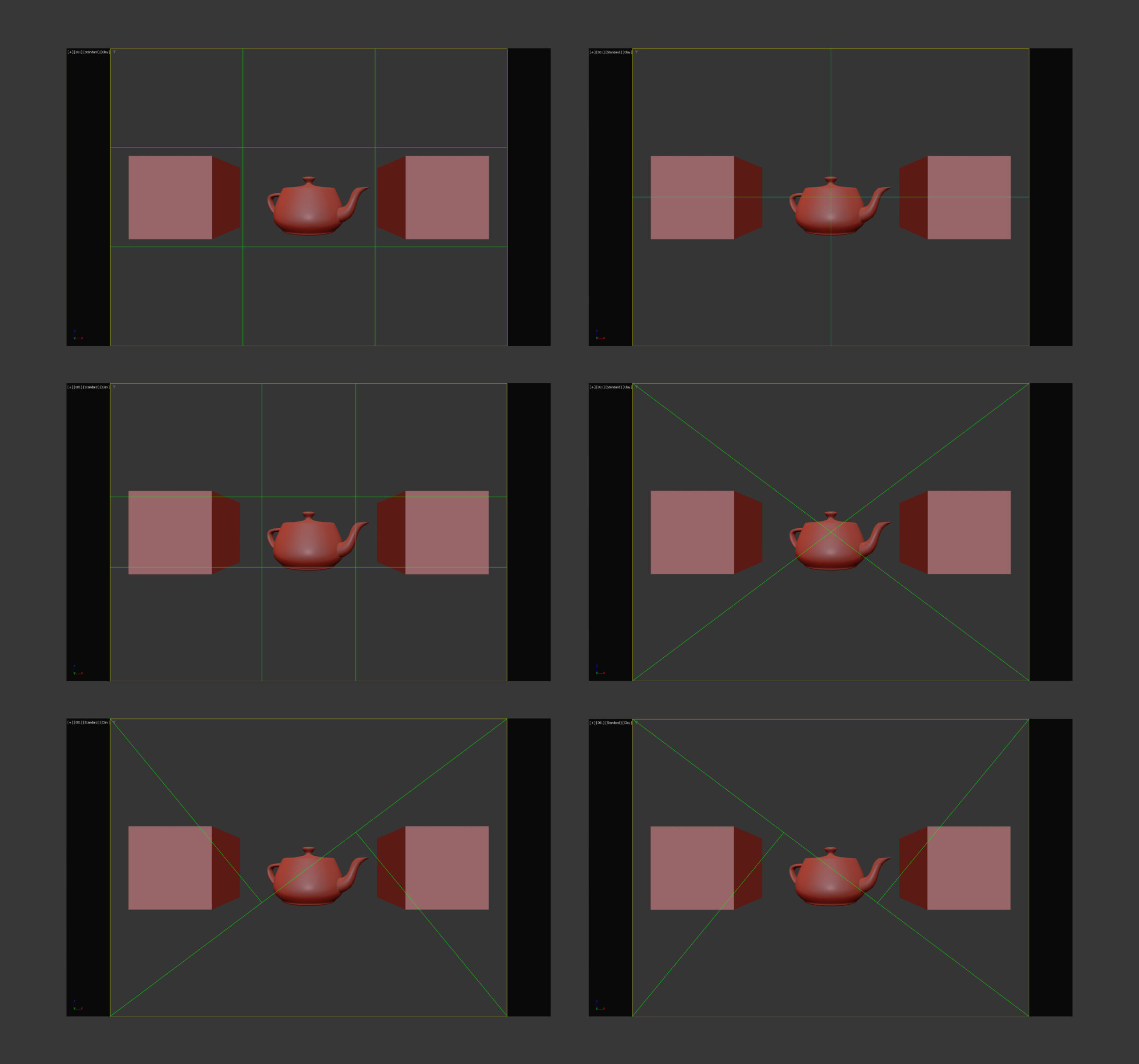
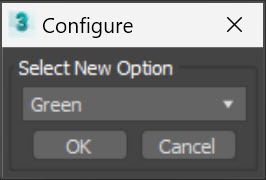
Composition configure.

Available grid types.

Custom Grid configure.
Grid Color configure.

Scene State, Render Preset, Frame Range

Set Scene State ⑨, Set Render Preset ⑩, Set Frame Range ⑪:

  • Click: set for the selection.
  • Shift + Click: set for all cameras.
  • Right-click: clear for the selection.
  • Shift + Right-click: clear for all cameras.

Scale, Round and Limit Resolution

  • Scale Resolution â‘«: enter a factor. Shift or Ctrl: double or halve. With nothing selected, the whole list is scaled and cannot be undone.
  • Round Resolution ⑬: round to a multiple of a value set by right-click. For example, 1896×1254 becomes 1895×1255 with 5, 1900×1250 with 10 and 1900×1200 with a rounding value of 100.
  • Limit Resolution â‘­: scale down so the pixel count stays under Pixel Count Limit, 2,560,000 by default, right-click to change. 2500×1400 becomes 2138×1197. Gives equal render time per image.

Miscellaneous

Clipping, depth of field, field of view and alignment.

Miscellaneous group.
  • Clipping â‘  with Near â‘¡ and Far â‘¢. Fstorm Camera fixes Far at 99999.
  • Depth of Field â‘£.
  • Field of View ⑤. Click FOV to switch to FCL, focal length.
  • Target â‘¥, Horizon Line ⑦, Automatic Vertical Shift â‘§.
  • Align ⑨. A: auto align the selection to the snap angle, 90 degrees by default. Shift + Click: all cameras. Right-click: set the angle. X, Y, Z: align along the axis. Click: around the midpoint. Ctrl + Click: move only the camera. Shift + Click: move only the target.
  • Lock Transform â‘©: lock the camera transform, same as all locks in Hierarchy > Link Info. Unlock there on a computer without the script.

Auto Align Camera with Snap Angle = 45.

Lock Transform.

Batch Render

Renders or grabs the viewport of several cameras at once.

Batch Render group.

Select cameras, then click Batch Render ⑤ or Batch Grab Viewport ⑥. Shift + Click: all cameras. Each camera uses its Frame Setup parameters.

  • Output folder â‘  and Select Output Folder â‘¢. Click: choose a folder. Right-click: default path. Ctrl + Click: set the default. Shift + Click: scene folder. Alt + Click: the project folder.
  • Open Output Folder â‘£: Click: current. Ctrl + Click: default. Shift + Click: scene file folder. Alt + Click: project folder.
  • Select Output Format â‘¡: JPG by default. Pick a format in the dialog and click Save, no file name is needed. Right-click: use the default format. Ctrl + Click: set the current format as the default.
  • Auto Shutdown ⑦: force shutdown after rendering, with a countdown of 300 seconds by default, right-click to change it. Abort cancels the countdown. Save everything first.
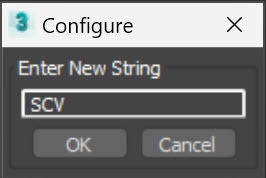
  • Custom Output Name â‘§: right-click to enter a name for the images.
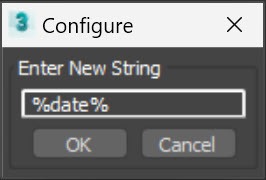
  • Create Sub Folder ⑨: right-click to name it, %date% for a date folder.
  • Use Default Batch Render â‘©: create jobs in the 3ds Max Batch Render dialog instead of rendering. Right-click to open that dialog.
  • Auto Open Output Folder ⑪: open the folder when finished.
  • Clear Viewport â‘«: hide icons and statistics for Batch Grab Viewport.

Choose render output image type.

Countdown before shutdown.
Custom output name.
Date folder.

Global Switches

Eight switches that take effect immediately.

Global Switches group.
  • Custom Color â‘ : wireframe color for cameras. Right-click to set it.
  • Name Fixer â‘¡: replace spaces with underscores, fix padding and duplicates. Right-click to set the padding digits.
  • Selection Sync â‘¢: sync the list with the viewport selection.
  • Fast Select â‘£: leave Modify mode when selecting cameras, far faster.
  • Auto Frame ⑤: safe frame on in camera views.
  • Pro Mode â‘¥: no messages, tooltips or prompts.
  • Lock Viewport ⑦: switch cameras only in the locked viewport. Right-click to lock the current viewport as the target.
  • Save Position â‘§: remembers the dialog position.

Lock Viewport: each viewport has an ID depending on the layout. Right-click the button, then click a viewport. Normal Switch and Hot Switch then always use that viewport, handy with two monitors and a floating viewport. The ID is saved per scene file, update it after changing the layout.

Lock Viewport message.

Preset and Extra

Resolution presets and extra camera tools.

Preset and Extra dialog.

  • Preset and Extra button â‘ : open the dialog.
  • Resolution Preset â‘¡: double-click a preset to set an exact resolution for the selected cameras. Edit the presets with the tools â‘¢. The defaults are HD, HD+, Full HD, QHD and UHD.
  • Open Camera Converter â‘£: needs Camera Converter installed.
  • Clear Camera’s Modifier ⑤: remove all modifiers from the cameras.
  • Fix Camera’s Target â‘¥: fix targets off the line of sight.
  • Clear Camera’s Key ⑦: remove animation keys.
  • CRM to SCV Convert â‘§: import resolutions of Camera Resolution Mod.

Script System Settings

Opened with the gear button next to About Script.

Script System Settings dialog.
  • List Height â‘ : camera list height in lines, 15 by default.
  • Mouse actions â‘¡: Normal Switch, Hot Switch, Select Camera, Select Target or Select All for each mouse action. Left click cannot be changed.
  • Do not display hidden cameras â‘¢.
  • Force redraw when switch â‘¢: fixes ghost wireframes.
  • Quick Close â‘£: pressing the toolbar button again closes the script.
  • Auto Start â‘£: open with 3ds Max.
  • Switch On Start â‘£: switch to the one selected camera on start.
  • In Lock Viewport â‘£: Switch On Start uses the locked viewport.
  • Quick Rename â‘£: rename on Enter, Tab, Esc or focus loss, no undo.
  • Viewport Info â‘£: show the resolution in the viewport.
  • Sticky Dialog ⑤: side of the Preset and Extra dialog, Left by default.
  • Countdown â‘¥: delay before Batch Render starts.
  • Backup, Restore, Reset ⑦: move settings between computers or reset.

Related products

Purchase

Enter your email to continue to payment. Your order details and download link will be sent to this address.

Secure payment, with instant delivery to your email after checkout.
By continuing, you agree to our terms and refund Policy ›