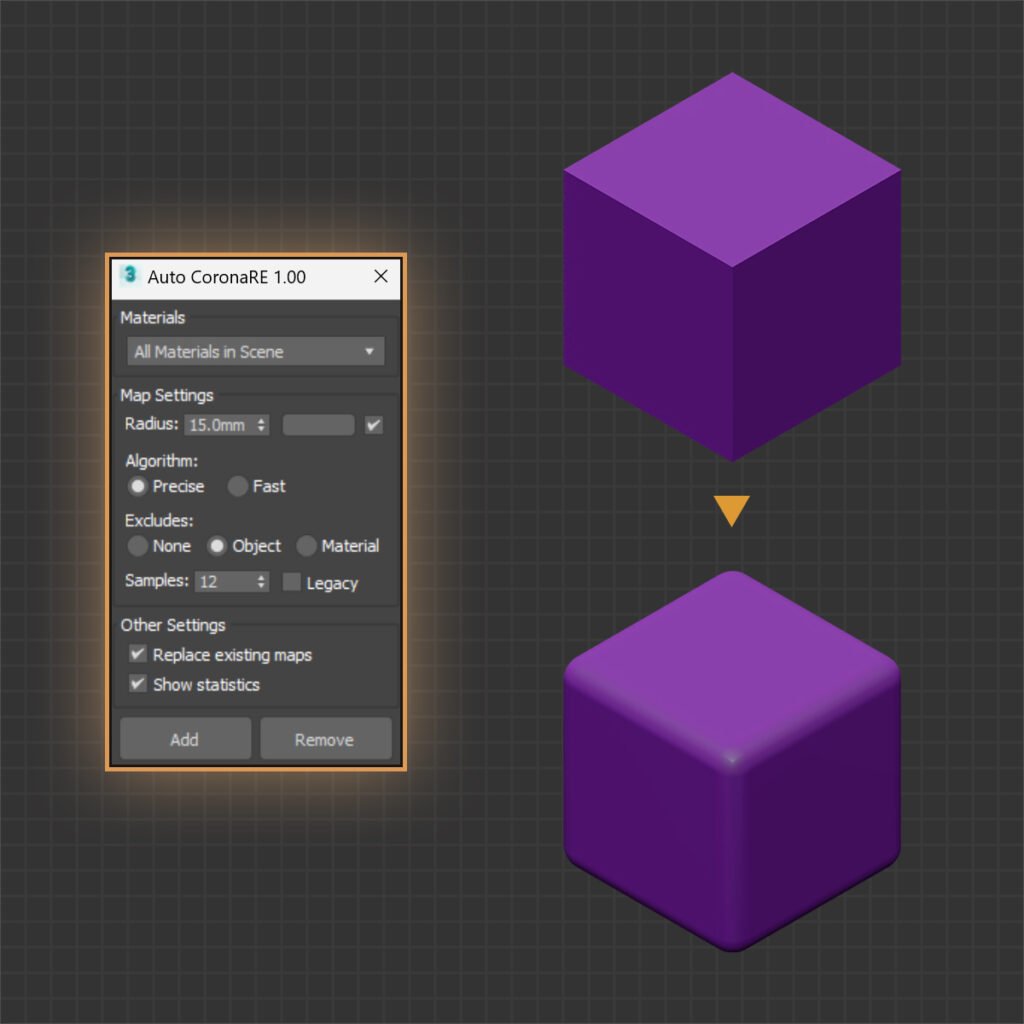
Feature demos below. Newer versions may look slightly different.

Merges multiple compressed assets with textures.

Feature demos below. Newer versions may look slightly different.
Merges multiple compressed assets with textures.
Latest version 2.48 – Updated 29/04/2025
We offer a 100% money-back guarantee if you are not satisfied with the product within 7 days of purchase, no questions asked. Policy ›
Smart Merge 2 is version 2 of the original Smart Merge script for 3ds Max. It imports or merges 3ds Max files and downloaded archives from 3D stock or asset library sites. Drag and drop the files to batch load them into the current scene, then select the files to merge from the list.
3ds Max 2018 or higher, 2022 or higher recommended. Older versions still run the script, but some options are not available. An internet connection is needed to activate a license key.
If the download is a ZIP, extract it to get the MZP or MCR installer. Drag and drop the installer into the viewport and click Install if asked, there is no need to remove previous versions. The script button is in Customize User Interface > Toolbar > D95 DESIGN.
Updates are free. Use Check for Update in the script, or download the latest version from Downloads and install it over the old one. To roll back, uninstall first, then install the older version.
Drag and drop the MZP installer into the viewport and click Uninstall. Settings can be kept or deleted. Uninstalling does not deactivate the license, so deactivate first to move to another computer.
If the uninstall fails, delete the script folder and its .mcr files in the two folders below, restart 3ds Max, then remove the toolbar buttons with right-click > Delete Button.
%LocalAppData%\Autodesk\3dsMax\20xx - 64bit\ENU\Scripts
%LocalAppData%\Autodesk\3dsMax\20xx - 64bit\ENU\usermacros
After purchase you receive an email with a license key. Each key can be activated on 2 computers and includes support and all future updates of this version. It is a one-time payment and the key is permanent.
The Activation dialog appears on the first start. Enter the license information from the purchase email and click Active.
To move to another computer, deactivate on the current one first via About > Deactive License. If the old computer is no longer accessible, use License manager in the Account page to deactivate it remotely.
If the script keeps asking for the key or activation fails, check that the computer is online and 3ds Max is not blocked by the firewall. Older versions identify the computer by its MAC address, which antivirus software can randomize, so update to the latest version. If 3ds Max cannot write to disk, run it as administrator and activate again.
Top Button, file list, Bottom Button with progress bar. The + button shows 3 rollouts: General Settings, Model Optimize, Post Process. The – button hides them. When docked they are always visible.


In the list, double-click a file to merge it, hold Ctrl or Shift to select several files at once, and right-click to open the extra menu.

Use + File, drag and drop, or Paste from the right-click menu.
Click Merge, double-click the file, or right-click and choose Merge. All included textures are found and relinked automatically after merging.
The first rollout, basic options in two groups.

First group of General Settings, 5 options.


Second group of General Settings.

If no archive matches the preview image, subfolders and the Custom Search Path are searched. Prompt asks first. Select Folder sets the Custom Search Path, for example E:/LIBRARY. If nothing is found, the script asks to pick the path manually. Keep paths short and without special characters.


The second rollout, options applied after merging.

First group of Model Optimize.

Removes animation keys, cameras, lights and more after merging. Purge Settings chooses what to remove. The M button asks before removing that element. Show Statistics reports what was removed.


Second group of Model Optimize.

Moves the pivot to Top, Middle or Bottom Center. Applies to Geometry, Groups or Everything. If the pivot resets when moving a group, enable Reset, or toggle Affect Pivot Only in Hierarchy once.

Third group of Model Optimize.
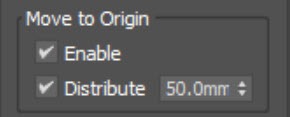
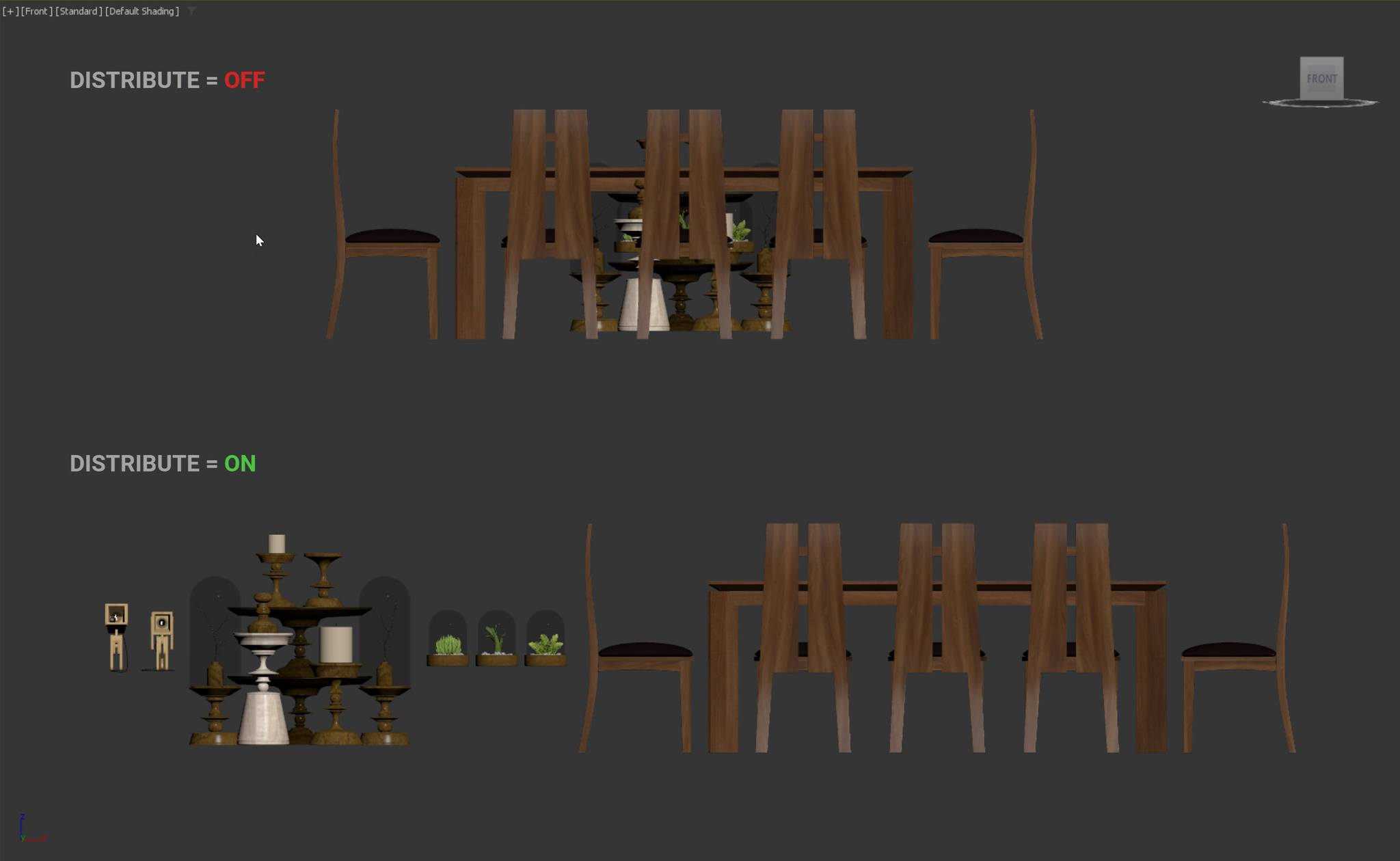
Moves merged objects to [0, 0, 0] using their middle center, regardless of Custom Pivot. Distribute spaces several models apart, 50 mm by default, so they do not overlap.
Last group of Model Optimize, 3 options.


The third rollout, actions after merging.

First group of Post Process, 4 options.

Second group of Post Process.

Runs every script in the Post Scripts folder after merging, in name order. Manage Post Script opens the folder. Only .ms or .mse, not .mcr. Prompt asks before running. Corona Quick Convert is a common post script.


Third group of Post Process.

Wirecolor of merged objects, cameras and lights. Before ①, after ②.

Last group of Post Process.

Moves merged objects to a layer. Force, on by default, removes empty layers left behind. Avoid special characters in layer names.
Changes here need a restart. OK restarts the script automatically.

First group of System Settings.
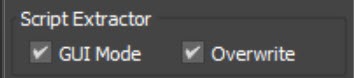
7-Zip extracts in the background. GUI Mode shows the 7-Zip window, needed for password-protected archives. Overwrite replaces files with the same name.

Second group of System Settings.
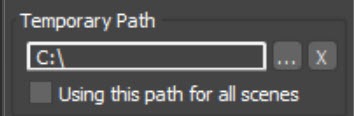
A saved scene extracts to a Smart Merge folder next to the scene file. An unsaved scene extracts to this path. Using this path for all scenes makes every scene share one list. The Smart Merge folder is always created, so C:\ means C:\Smart Merge.
Third group of System Settings.


Last group of System Settings, 4 options.